Introduction
This article explains how to create a Custom Validation Rule starting from WebRato 6.1.
Validation Rule Wizard
In order to be able to create a Custom Validation Rule, it's necessary to add a Components Project to your workspace.
- From the main menu choose File -> New -> Components Project
- Give a name to the Components Project and click on the Finish button
To add a new Validation Rule
- From the main menu choose File -> New -> Validation Rule
- Give a name to the Validation Rule and choose the target Components Project. Finally, click on the Next button.
- Choose whether the rule is related to a Single Field or to the Unit and click on the Finish button.
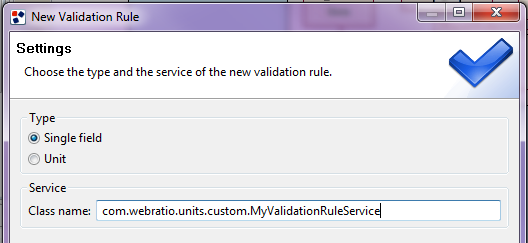
The wizard creates different folders inside the Components Project related to the Validation Rule.
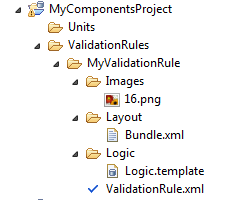
- Images. In this folder you can place a png 16x16 which represents the icon for your validation rule. This icon will be used in WebRatio to show your validation in the list of the available ones.
- Layout. This folder contains the "Bundle.xml" file which is used in order to retrieve the default error message that the unit should show to the user when the validation failed.
- Logic. This folder contains the Logic.template in which the user defines which is the Java class containing the logic of the validation rule.
- ValidationRule.xml. This is the main configuration file of the Validation Rule.
ValidationRule.xml
It's possible to open and edit the ValidationRule.xml file with a double click. This file is opened in a specific visual editor in which the information are splitted into four different sections.
General
This is the first section, composed by two blocks.
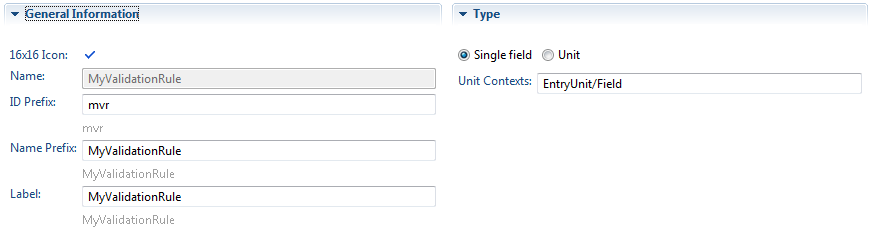
General Information
In this section is possible to specify some general information about the validation rule. The available properties are:
- 16x16 Icon. The rendition of the validation rule in the Outline tree. To change the 16x16 icon, a PNG file named 16.png must be inserted in the sub-folder Images of the validation rule configuration folder.
- Name. The XML tag name given to the validation rule
- Id Prefix. The prefix you want the validation rule is identified by in the Web Project
- Name Prefix.The default name prefix of the validation rule when it is added into the model.
- Label. The label used to visualize the validation rule in the Validation Rule dialog.
Type
You can set the Type of the validation rule by changing the selection from Single field to Unit.
- Unit Contexts. If a validation rule can be applied only to specific units or fields, the Unit Contexts property permits to define such a behaviour by simply set a pipe-separated list of unit tags or field tags (preceded by unit tags) as in the following examples: "MultiChoiceIndexUnit|PowerIndexUnit", "MultiEntryUnit/Field|MultiEntryUnit/SelectionField"
Sub-Elements
In this section is possible to configure the properties of the validation rule. These properties will be available in the Properties View of the Validation Rule once it has been added to an element in the Web Project.
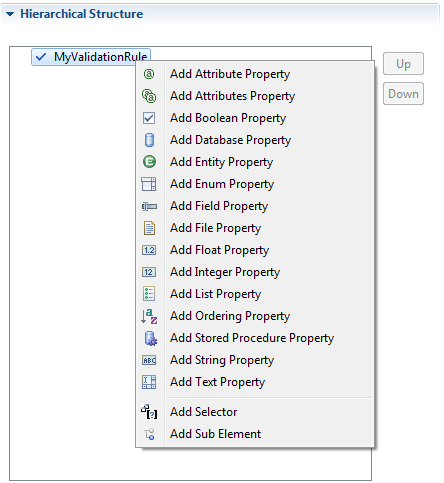
 Attribute Property. The property permits to select an entity attribute. The properties of the element are:
- Attribute Name: is mandatory; it defines the name of the XML attribute designed to contain the attribute identifier
- Entity Id Expr: is mandatory; it defines the XPath expression to reach the entity identifier defined in the entity property. The identifier allows to reach the data model Entity.
- Include Derived: defines if the attribute can be a derived attribute
- Attributes Property. The property permits to select a set of entity attributes. The properties of the element are:
- Attribute Name: is mandatory; it defines the name of the XML attribute designed to contain the space-separated list of attribute identifiers
- Entity Id Expr: is mandatory; it defines the XPath expression to reach the entity identifier defined in the entity property. The identifier allows to reach the data model Entity.
- Include Derived: defines if the attributes can be derived attributes
 Boolean Property. The property holds a true or false value. The properties of the element are:
- Attribute Name: is mandatory; it defines the name of the XML attribute designed to contain the boolean value
- Default Value: the default value of the property. It can be true or false
 Database Property. The property permits to select a database. The properties of the element are:
- Attribute Name: is mandatory; it defines the name of the XML attribute designed to contain the database identifier
 Entity Property.The property permits to select the entity from which the content of the validation rule is drawn. The properties of the element are:
- Attribute Name: is mandatory; it defines the name of the XML attribute designed to contain the entity identifier
- Include Derived: defines if the entity, from which the content is drown, can be a derived entity
- Removable: defines if the property can return to a blank value
 Enumeration Property . The property permits to select one of the proposed values. The properties of the element are:
- Attribute Name: is mandatory; it defines the name of the XML attribute designed to contain the selected value
- Default Value: the default value of the property. The value must be one of the values defined as Enumeration Item. The Enumeration Item is its sub-element. It defines the possible property values. Its properties are:
- Value: is mandatory; it represents the value that appears in the DOM project.
- Label: the visualized label representing the value. If the field is empty, it is used the capitalized value. (e.g., plain is shown as Plain)
 Field Property. The property permits to select another field. The properties of the element is:
- Attribute Name: is mandatory; it defines the name of the XML attribute designed to contain the field identifier
 File Property. The property permits to select a file that has to be associated to the validation rule. The properties of the element are:
- Attribute Name: is mandatory; it defines the name of the XML attribute designed to contain the selected file path
- Extension: the file accepted extension
- Default Value: the default path of a file
 Float Property. The property permits to write a float value to associate to the property. The properties of the element are:
- Attribute Name: is mandatory; it defines the name of the XML attribute designed to contain the float value
- Default Value: the default float value
 Integer Property. The property permits to write an integer value to associate to the property. The properties of the element are:
- Attribute Name: is mandatory; it defines the name of the XML attribute designed to contain the integer value
- Default Value: the default integer value
 List Property. The property permits to create and manage a list of element children. The properties of the element are:
- Element Name: is mandatory; it defines the tag name of the XML element designed to contain each value
- Attribute Name: is mandatory; defines the name of the XML attribute that contains the element value
 Ordering Property. The property permits to order the chidren of the element. The properties of the element are:
- Attribute Name: is mandatory; it defines the name of the XML attribute that contains the space-separated children identifiers listed in the selected order
- Elements Expr: is mandatory; it defines the XPath expression to reach the elements being ordered
 Stored Procedure Property. The property permits to write a string value to associate to the property. The properties of the element are:
- Attribute Name: is mandatory; it defines the name of the XML attribute designed to contain the procedure name
- Database Id Expr: is mandatory; it defines the XPath expression to reach the database identifier defined in the property. The identifier allows to reach the data model Database.
 String Property. The property permits to write a string value to associate to the property. The properties of the element are:
- Attribute Name: is mandatory; it defines the name of the XML attribute designed to contain the string value
- Default Value: the default string value
 Text Property. The property permits to write an arbitrary text or script. The properties of the element are:
- Element Name: is mandatory; it defines the tag name of the XML element designed to contain the text or the script
- Default Value: the default text or script
- Content Type: the type of the text contained in the element. The possible values are text and script
For each of the properties mentioned above, it is possible to write an Enabled Condition script that defines when the property can be edit in the Properties View.
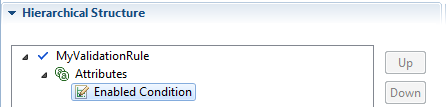
The script context includes a predefined variable named element that represents the DOM4J validation rule or sub-element. The condition must return true or false.
For instance the Attributes Property Enabled Condition for the Like Validation Rule is the following.
return element["valueField"] == ""
Documentation
This section permits to give a brief description to each sub-element and to each input parameter. The sub-elements documentation consists of a brief description (see the following image to have an example).
XML
This section allows to see the XML code of the validation rule.
The Java Class
The wizard also creates in the Components Project a folder named "src" which is visible only when the user goes in the Package Explorer View. This folder contains the Java class in which the logic of the validation rule has to be written. The Java class has the same name of the Validation Rule plus the suffix "ValidationRuleService" (e.g. ExampleValidationRuleService). This is a sample skeleton of this class
public class ExampleValidationRuleService extends AbstractFieldValidationRuleService {

    public ExampleValidationRuleService(String id, RTXManager mgr, Element descr) throws RTXException {
        super(id, mgr, descr);
    }


    public NextValidationPolicy validate(RTXField field) throws RTXException {
        return NextValidationPolicy.SKIP;
    }
}
The class has two methods:
- the constructor (ExampleValidationRuleService) in which it's possible to extract the information set by the user in the Properties View of the Validation Rule. This properties are stored inside an XML fragment that is available at runtime. This XML can be used to extract those information.
- the "validate" method, which is called from the Web application when a field having this validation rule attached has to be processed. This is the poing in which the logic of the validation rule has to be written. This method returns a value indicating whether the validation of other fields should be considered or not. The available options are:
- NextValidationPolicy.SKIP. This option should be used when the validation has to be interrupted. This means that the Web page will show to the user all the error messages collected till this validation rule execution.
- NextValidationPolicy.CONTINUE. This option should be used when the validation has to continue. This means that all the error messages will be displayed at once in the web page when all the validation rules have been processed.
In order to register an occured validation error message use the method
RTXField.addError(bundleKey);
where the bundleKey is the key identifying the message within the Bundle.xml file of the Validation Rule. For more information about Validation Rules APIs please refer to the WebModeling User Guide > API > com.webratio.rtx.validation.